Qwiktest custom student fields
Ask students for the details you need, before the test.
Qwiktest custom student fields let a school, coaching institute or hiring team add its own questions, like phone number, college, branch, date of birth, PIN code or an “I agree” tick, that students answer once before they start an online test. Answers are checked as they type, filled in again on their next test, and shown as columns in results, Excel, CSV and PDF.
Make the field once. Every test can ask it.
Last updated
Custom student fields at a glance
- Field types
- Short text, number, phone, PIN code, dropdown, date, Yes / No
- Checks
- 10-digit mobile, 6-digit PIN, age range, choices. No setup
- Per test
- Pick which to ask, each required or optional
- Students
- Fill once. The next test fills it in for them
- Excel upload
- Add the answers with your student list
- Results
- A column per field in Excel, CSV and PDF
- Plans
- Pro, Business and Enterprise
Make your own fields in a minute
Pick a type
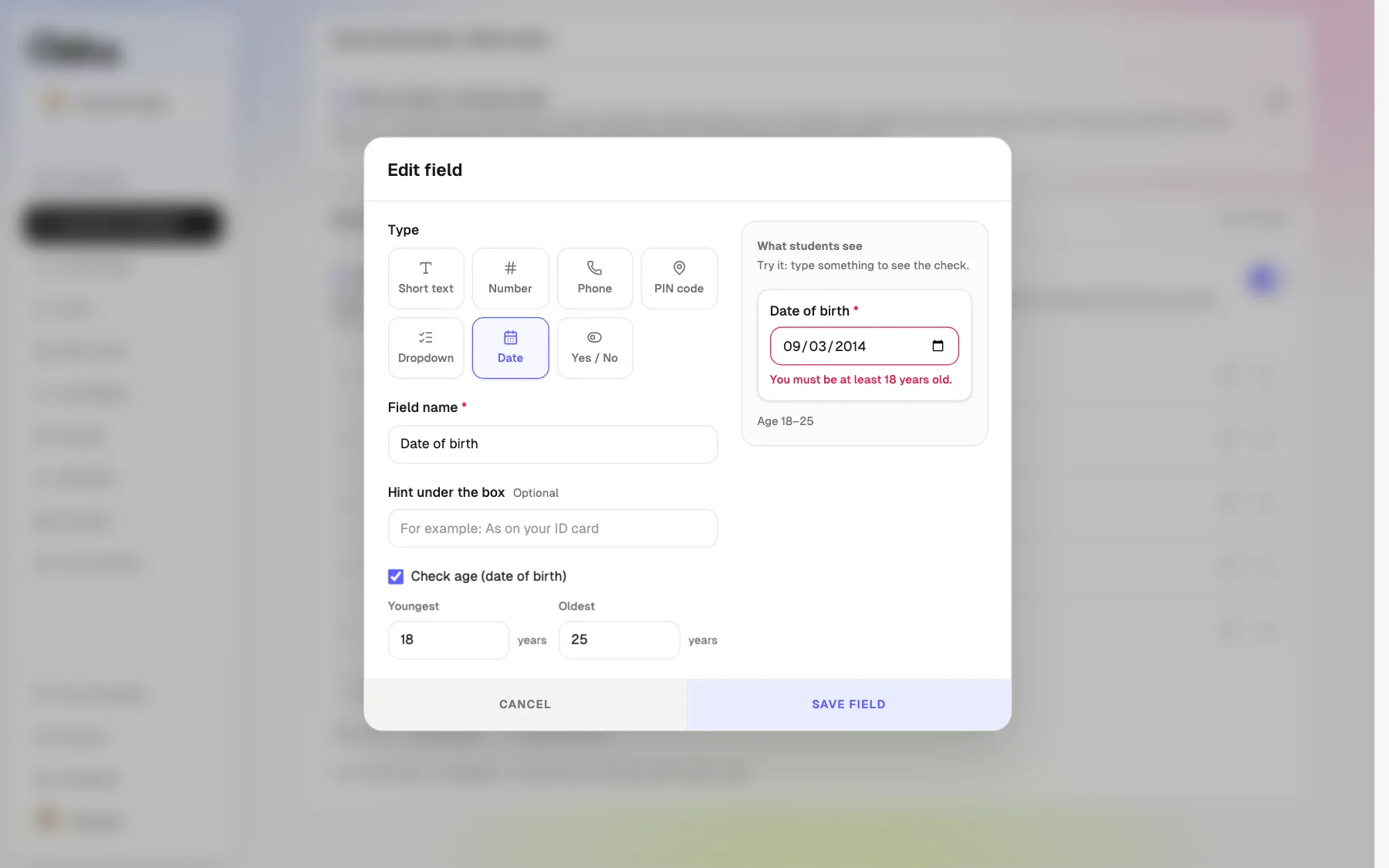
Phone, PIN code, dropdown, date and more. The checks come built in.
Quick add
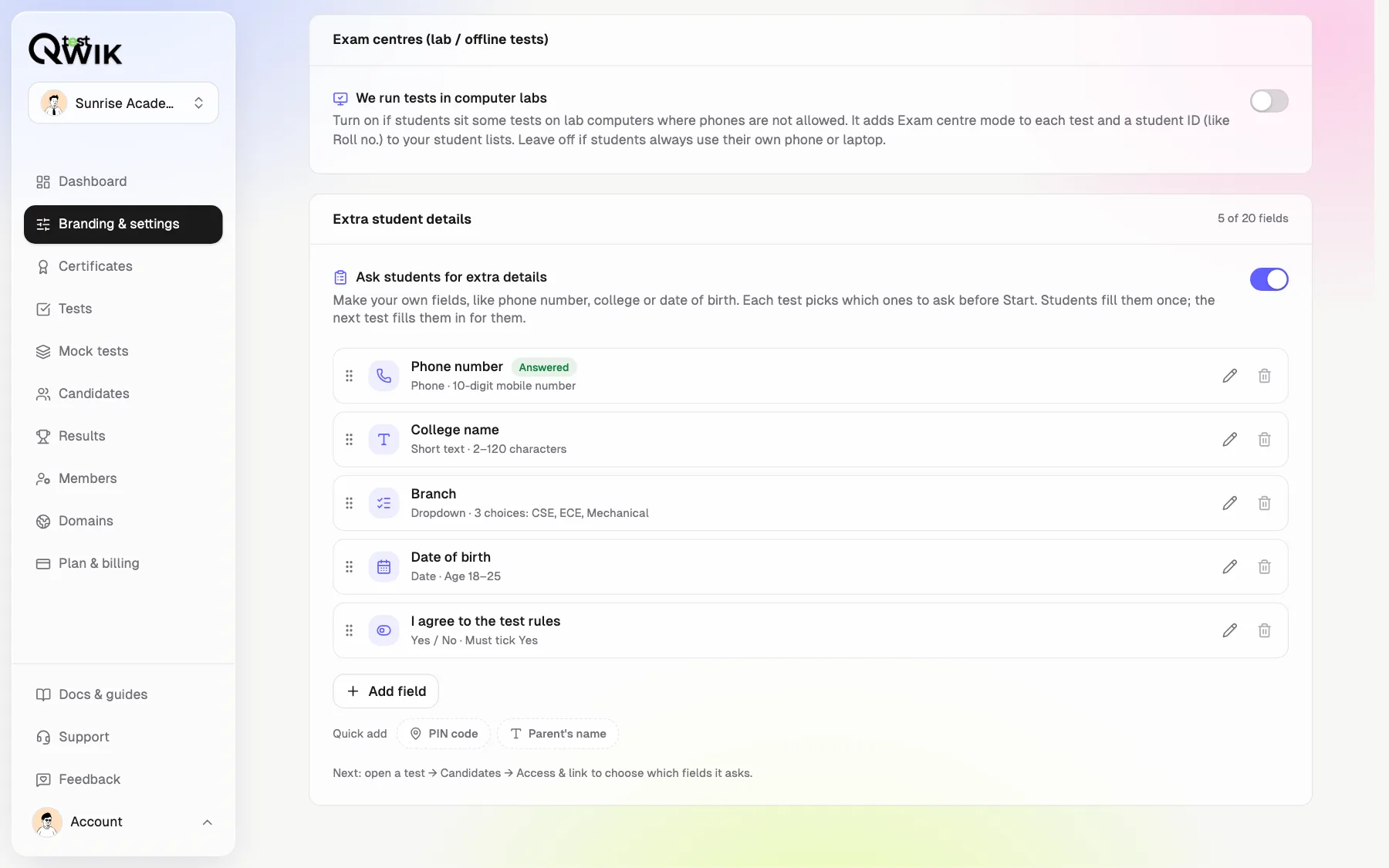
Phone number, College, Date of birth, Branch and “I agree” in one tap.
Try it first
Type in the preview and see the exact message a student will get.
Each test asks what it needs
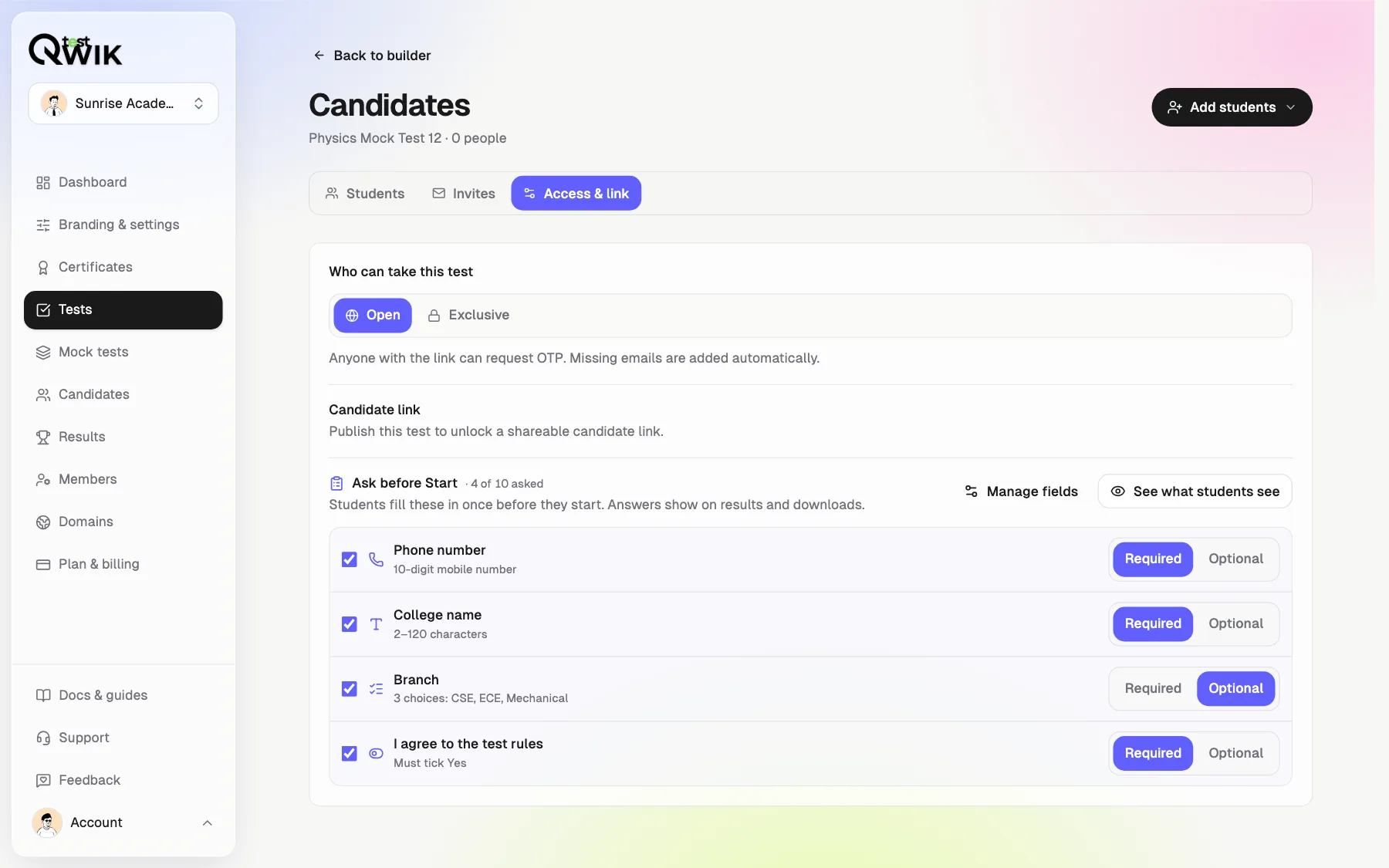
Tick the fields for this test and choose Required or Optional. A campus drive asks for the branch and phone; a weekly mock asks for nothing.
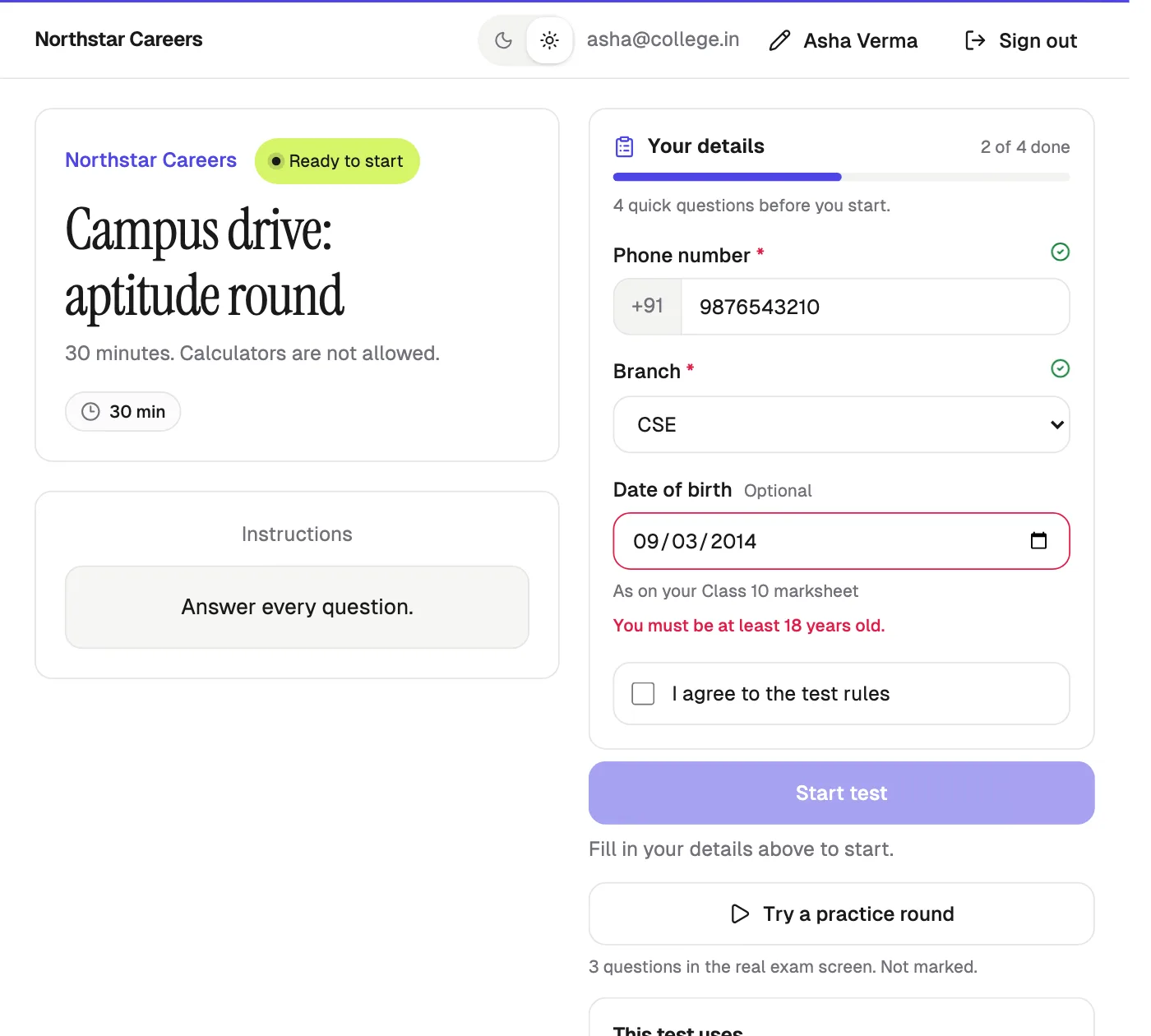
Students fill it in once, right above Start
Checked as they type
“Enter a 10-digit mobile number.” “You must be at least 18 years old.”
Start waits
Start turns on when every required field is right.
Filled in next time
Their next test already has their answers. One tap to start.
Every answer in your results
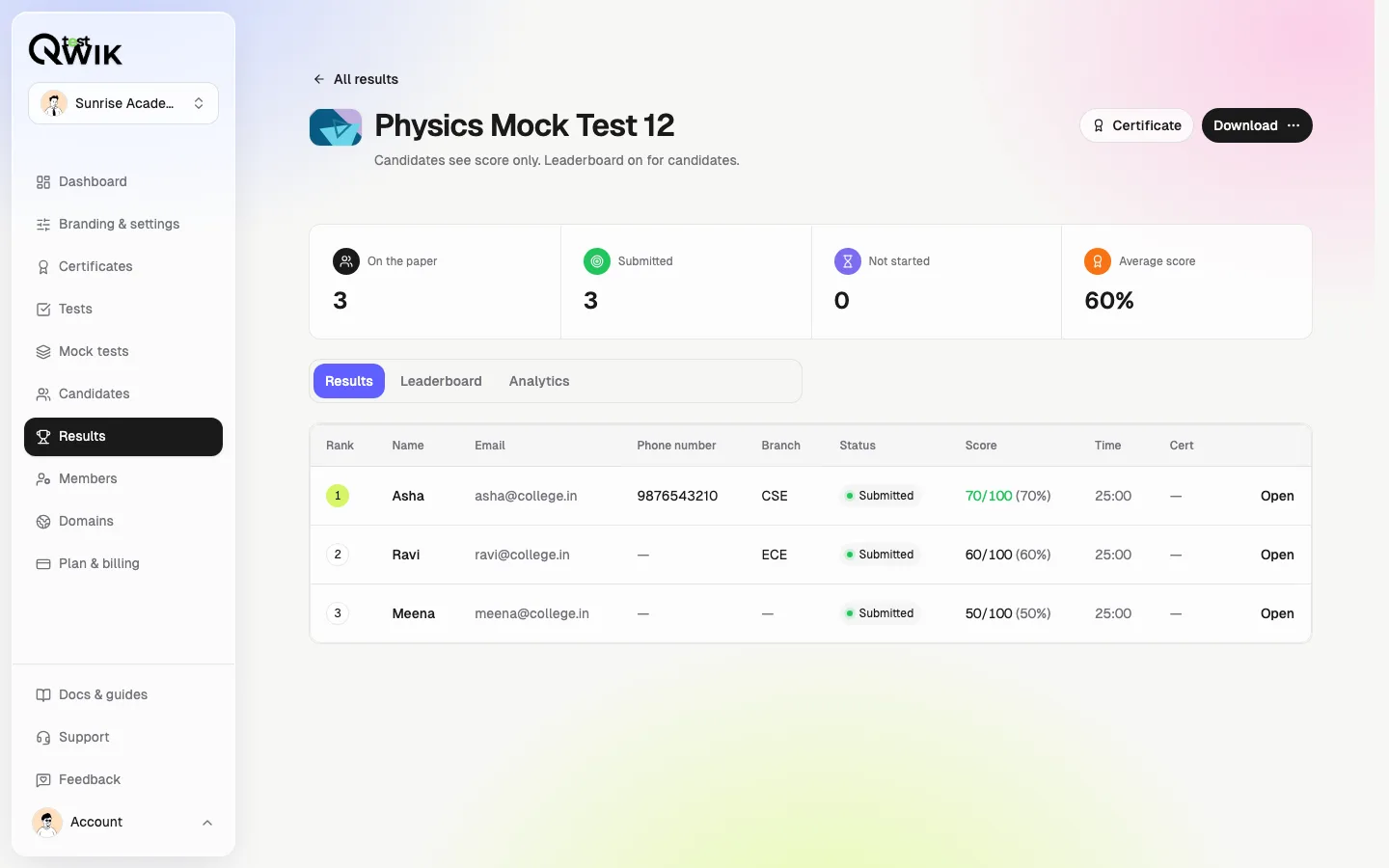
A column per field on the results page and in Excel, CSV and the results PDF. Tests that ask nothing look exactly as before.
Which plans include it
- Free and Starter
- Not included. Students give their name and email as usual.
- Pro
- Up to 20 fields in a workspace, 10 on a test.
- Business
- Everything in Pro.
- Enterprise
- Everything in Pro, with custom limits.
How to collect student details before an online test
Turn it on
In Branding & settings, open Access and turn on Ask students for extra details.
Add your fields
Tap Quick add or Add field. Pick a type, name it, and try it in the preview.
Pick them on a test
Open the test's Candidates page, then Access & link. Tick the fields and choose Required or Optional.
Read the answers
Students fill them in before Start. Answers show on results and in every download.
Custom student field questions
How do I collect student details before an online test?
Turn on extra student details in Branding & settings → Access, add fields like phone number, college or date of birth, then tick them on the test's Access & link tab. Students fill them in on the test page before Start, and the answers show in your results and downloads.
What kinds of fields can I add?
Short text, number, phone number, PIN code, dropdown, date and Yes / No. Each comes with its own check: a 10-digit Indian mobile number, a 6-digit PIN code, a number range, the choices you list, or an age range for a date of birth. A Yes / No can be an “I agree” tick that only Yes passes.
Can a field be required on one test and optional on another?
Yes. Fields are made once for the workspace, and each test picks which ones to ask and whether each is required or optional. Start stays off until every required field is filled in correctly.
Do students have to type their details again for every test?
No. Answers are saved with the student, so their next test is already filled in and they can start in one tap. They can change anything that is out of date.
Can I add students' details from Excel?
Yes. The import template gets a column for each field the test asks. Values are checked like the student form; a wrong value is left out and listed in the report, and the student is still added. A blank cell keeps what the student already gave.
Do the answers show in results and downloads?
Yes. The results page gets a column per field after Email, and the Excel, CSV and results PDF carry them too. Tests that ask no fields keep their files exactly as before.
Can I check a student's age from their date of birth?
Yes. Set the youngest and oldest age on a date field. A student outside the range sees “You must be at least 18 years old.” (or the oldest age) and cannot start until it is right. Ages are counted in India time.
Is it good for campus hiring and admission tests?
Yes. Hiring teams ask for the branch, CGPA, phone number and an “I agree” tick; schools and coaching institutes ask for the class, parent's name or PIN code. It works with email, Google and Exam Centre sign-ins.
Which plans include custom student fields?
Pro, Business and Enterprise. A workspace can have up to 20 fields and each test can ask 10. On Free and Starter, students give their name and email as usual. Scoring never uses these answers.